
Real-time push family calendar — how notifications now work
Inbox and handoff notifications used to wait until someone opened the app. Now they appear on the lock screen within seconds. Here's what changed and why.
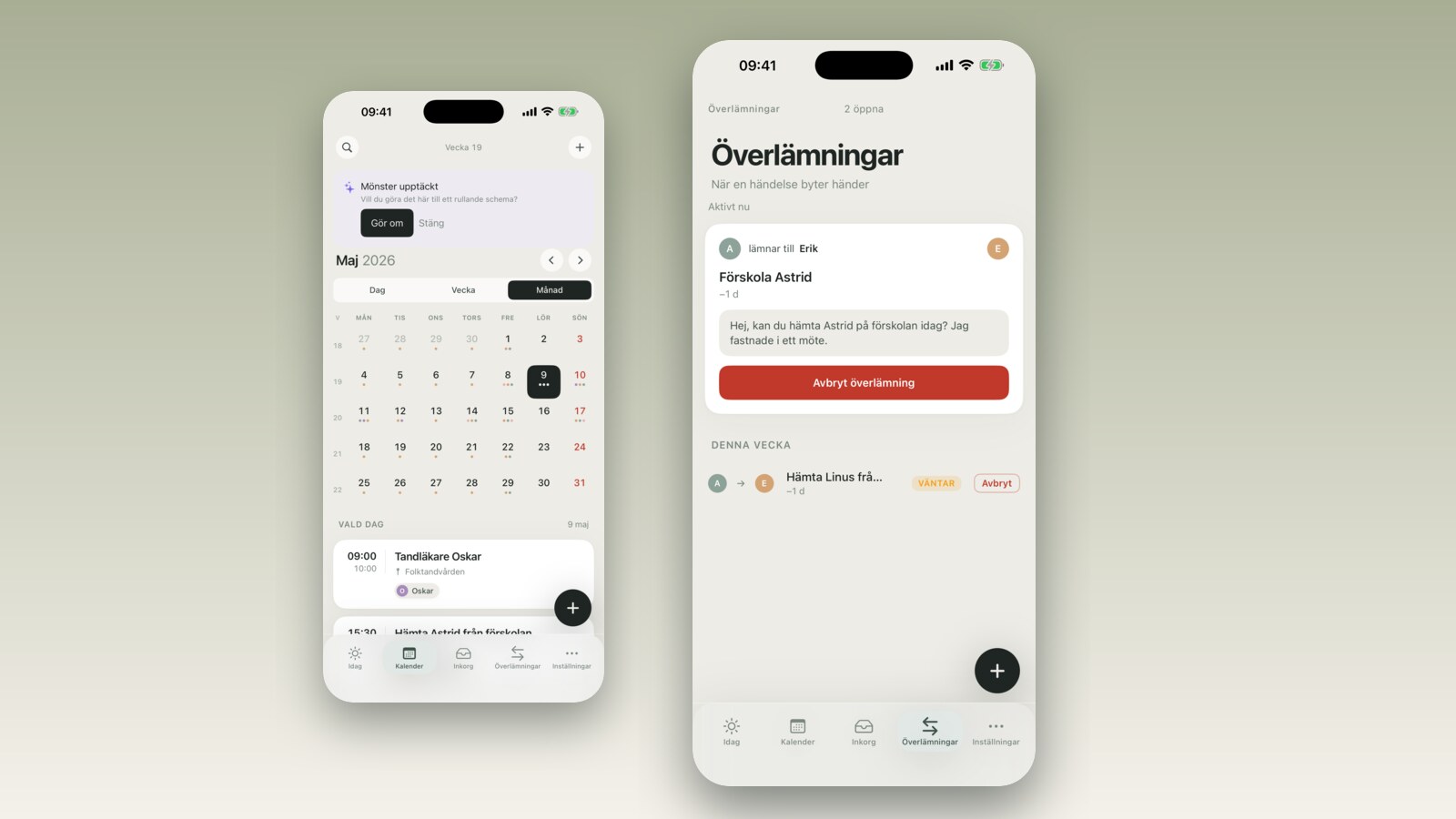
Friday evening at 6:40 PM. You are driving home and you send a handoff in FamilyBoard to the other parent — Saturday's pickup at 10 AM needs to change, you can't make it. The request goes through. You figure that's sorted.
Saturday morning, pickup time. No reply. You call. The other parent had not opened the app since Tuesday — knew nothing about the change. The pickup fell through.
That was not a mistake on their part. It was a technical limitation in the app: the notification was sitting inside FamilyBoard waiting for someone to open it. In v2.4 we changed that. Handoffs, Inbox suggestions, and availability bookings now deliver as real-time push notifications — directly to the lock screen, within seconds.
What changed
Previously FamilyBoard's notifications worked more like a queue to check: events, suggestions, and handoffs sat inside the app and appeared the next time you opened it. For most notifications — a reminder about an activity tomorrow, a new event someone added — that worked fine. But for time-sensitive things that needed a response from another person it was not good enough.
In v2.4 three types of events changed:
- Inbox suggestions — when AI creates a suggestion from a forwarded email, a push notification is sent immediately, not the next time you happen to open the app.
- Availability bookings — when someone books a slot using your availability link you get a lock screen notification right away.
- Parent-to-parent handoffs — the trigger for this change. A handoff reaches the recipient's phone within seconds, regardless of whether they have had the app open.
Other notifications (reminders, daily summaries) work as before — they were already fast enough for their purpose.
How it works
There is nothing to turn on. If you already allow notifications for FamilyBoard, real-time push starts working automatically when you update to v2.4.
Want to confirm that notifications are on? Here's where to find the setting:
- Open Settings on your iPhone or iPad.
- Scroll down and tap FamilyBoard.
- Tap Notifications.
- Confirm that Allow Notifications is on, and that Lock Screen is checked.
If you had notifications turned off before — nothing is lost. Events are still in the app; it is only the delivery to the lock screen that requires notifications to be allowed.
What "real time" means technically
Push notifications on mobile work via Apple's APNs (Apple Push Notification service) and Google's FCM (Firebase Cloud Messaging). The idea is straightforward: instead of your phone asking the server "is there anything new?" every five minutes, the server can push a notification directly to your device when something actually happens. That is why you can receive a notification from an app you haven't opened in a week — your phone does not need to be "connected" to the server the whole time; it keeps a lightweight channel open in the background.
What is new in v2.4 is that FamilyBoard's server now triggers that channel directly when a handoff is created, an Inbox suggestion is generated, or a booking is confirmed — instead of waiting for the app to ask.
One detail we also fixed is token invalidation. Each device is identified by a unique token registered with APNs or FCM. Sometimes a token can become stale — if you reinstall the app, switch phones, or for other reasons. Previously the server kept sending to the old token until it was obvious nothing was getting through. Now the server listens to APNs and FCM's response: if they say a token is invalid ("BadDeviceToken" or "Unregistered") it is immediately marked inactive and removed from the delivery queue. This means notifications actually arrive — and we are not sending to tokens that stopped working long ago.
None of this requires you to do anything. It happens automatically in the background to keep delivery reliable.
When it makes a difference
Friday evening's handoff. Exactly the scenario described above. A pickup needs to change, the other parent has not opened the app since Tuesday. With real-time push the notification pops up on the lock screen within seconds — and the chance they see it that evening is significantly higher than if it had just been sitting inside the app until they happened to open it Monday morning.
Availability bookings during a meeting. You shared your availability with a coordinator for this week's activities. At 10:15 AM on a Tuesday, in the middle of a work video call, the coordinator books a slot based on your availability. Before: you would have seen it when you checked the app at lunch. Now: you see the notification immediately — and know the time worked out, without having to break the meeting to check the app.
Inbox suggestions that get resolved the same day. You forwarded a school email about a snow day on Friday. AI extracts the event, creates a suggestion, and sends the notification at 11:48 AM. You open the app at lunch, review, approve. The event is in the calendar the same day it came in, not the next evening when you happen to notice the app icon and remember you had something unresolved.
How to get started
Update to v2.4 and make sure notifications are allowed for FamilyBoard (see the step above). That is all.
If you and the other parent coordinate pickups via FamilyBoard it is worth checking that both of you have notifications on — a chain is only as strong as its weakest link. You can find information about how to set up reminders and departure alerts for activities in a separate post if you want to get the most out of the notification features.
A full walkthrough of everything new in this version is on the v2.4 update page. Or start from the beginning and see what FamilyBoard is on the home page.
Frequently asked questions
Do I need to turn anything on? No, as long as notifications are already allowed for FamilyBoard on your device. Real-time push activates automatically when you update to v2.4. The only thing you may need to check is that Lock Screen is selected under Settings → FamilyBoard → Notifications.
What shows in the notification — is private information visible on the lock screen? Notification text is intentionally brief. A handoff notification shows roughly "Emma requested to swap Saturday at 10 — review in app." Attendee names may appear, but no addresses, no event details, and no message text are included in the notification. Details are inside the app, behind Face ID or a passcode. If you want extra control you can enable "Hide preview" under iOS notification settings — then only the app name appears on the lock screen. We describe how we handle personal data in notifications in our privacy policy.
What if I turn off notifications? Nothing is lost. Handoffs, suggestions, and bookings are still in the app and appear in the Inbox the next time you open FamilyBoard. That is exactly how it worked before v2.4 — you are only opting out of the immediate delivery to the lock screen.
Does it work on Android? Yes. The Android version of FamilyBoard uses FCM (Firebase Cloud Messaging) for push notifications, which is Android's equivalent of Apple's APNs. Real-time delivery and token invalidation apply on both platforms.
Does it drain the battery more? Barely noticeably. Push notifications on modern iOS and Android go through a shared background channel that the operating system manages centrally for all apps — it is not a separate connection per app. A notification arriving on your device is a small signal that wakes the app for a fraction of a second. The battery impact is effectively negligible compared to having the app open.