
Weekday and weekend notification times — daily summary v2
Different notification times for weekdays and weekends, an evening push that shows 'tomorrow: 3 events', or skip weekends entirely. You decide — the app adapts.
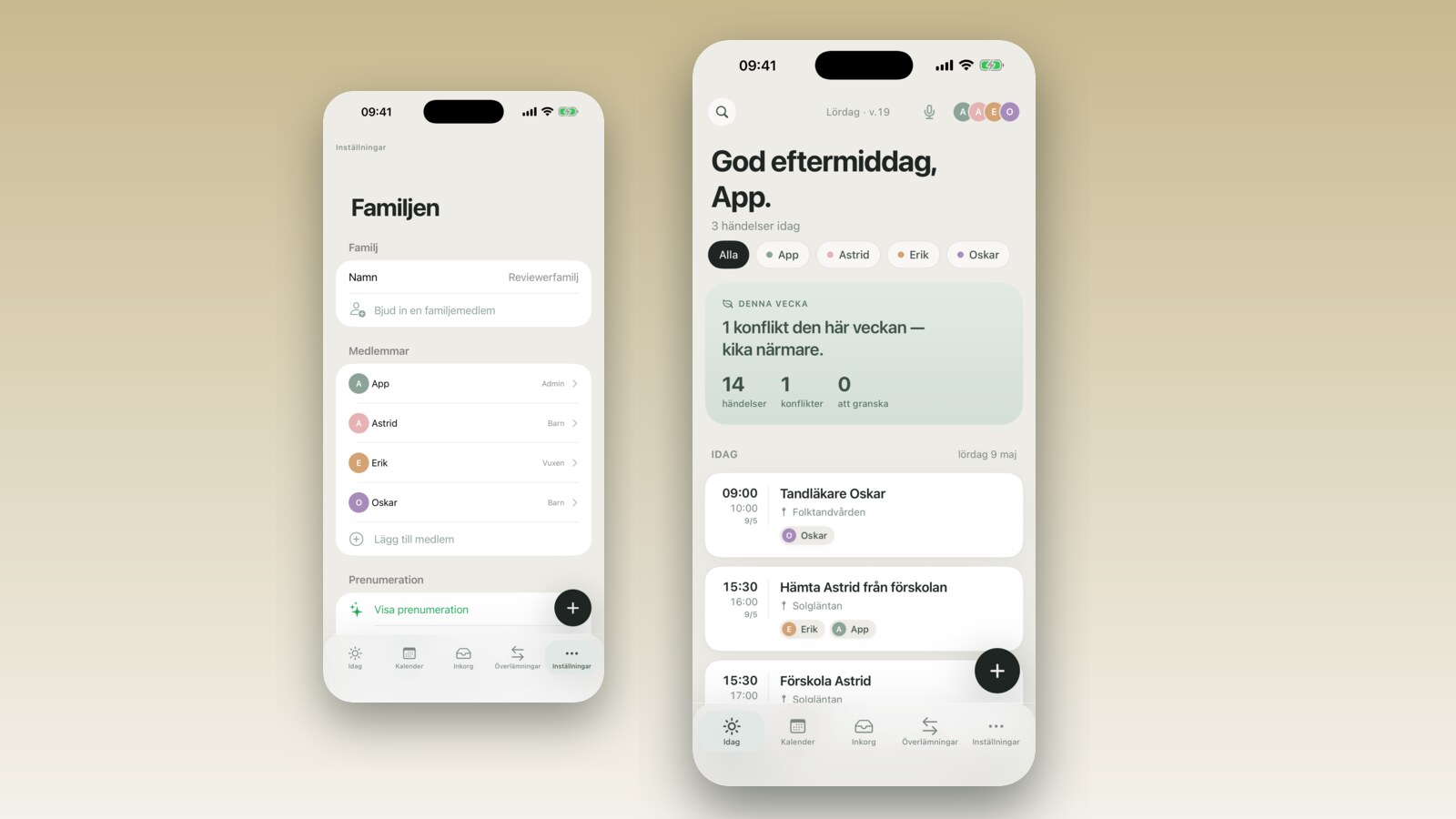
It is 6:31 AM on a Saturday. You were up until after midnight, the kids are still quiet, and then the phone pings. A push notification from FamilyBoard: the daily summary. The kids' fun run at the park at 2:00 PM, the lunch reminder you put in on Wednesday, and the note about buying more laundry detergent. Everything is accurate. The notification is right. The time is wrong — it is the 6:45 AM weekday slot, not 6:31 on a Saturday.
This is not a technical glitch. It is a design problem: a single morning notification time works for a weekday, but a family home does not run on a schedule of seven identical days. The weekend is different. The way the phone communicates with you should be different too.
In FamilyBoard v2.4 we rewrote the daily summary from scratch — with separate notification times for weekdays and weekends, an evening notification that shows what is happening tomorrow, and the option to turn the summary off entirely on weekends when it adds nothing.
What changed
Previously the daily summary had one global time. You chose "7:00 AM" and you got the notification at 7:00 AM every day — Monday through Sunday, vacation, holidays, and every other day that lives on its own terms.
In v2.4 notification times are split into three separate settings:
Weekday time (Monday–Friday) — the time most people want the morning notification. The default is 6:45 AM, right before the morning rush.
Weekend time (Saturday–Sunday) — a separate time for weekend mornings. The default is 8:30 AM. No alarm clock if there is no reason for one.
Evening notification — a new notification sent in the evening that shows what is happening tomorrow: "tomorrow: 3 events — Noah practice 5:00 PM, dinner at grandma's 6:30 PM, pick up package." The default is 9:00 PM, but you pick the time yourself. The idea is that you should not have to start the day getting your bearings — you already know what is coming.
The fourth option is a simple toggle: skip weekends. Families with empty weekend calendars, or families who actively want to protect Saturday and Sunday mornings from notifications, can turn the summary off on weekends entirely. No notifications Saturday and Sunday — full stop.
How it works
1. Open Settings. Tap the gear icon at the bottom of the app.
2. Choose Notifications. Then select Daily summary.
3. Set the weekday time. A time picker, just like an alarm. Choose the time that fits your family's morning routine.
4. Set the weekend time. The same picker, separate for Saturday and Sunday. If you want 8:30 AM on weekends but 6:45 AM on weekdays — that is exactly what this setting is for.
5. Turn on or set the evening notification. The toggle is off by default. Switch it on and choose a time — most people pick somewhere between 8:30 PM and 9:30 PM, but the time itself doesn't matter. The notification is sent that evening with a preview of the next day.
6. Choose whether to skip weekends. At the bottom of the same view is a toggle labeled "Skip weekends." Turn it on and both the morning and evening notifications are off on Saturday and Sunday entirely. Other days are unaffected.
You do not have to change all the settings. If you only use the weekday time and leave the rest at their defaults it works exactly as before — just with a more sensible default for weekend mornings.
When it is useful
The parent who works shifts. A parent on a night shift does not start their day at 7:00 AM — maybe their day starts at 3:00 PM after they wake up. With customizable notification times the daily summary can be placed when there is actually time to read it. We have written more about how FamilyBoard works for shift-working families in the family calendar that handles reminders without disturbing sleep.
The family that protects Saturday mornings. Some families actively keep Saturday mornings quiet. The pancakes matter more than the schedule. A 6:45 AM notification that lists the day's activities breaks that calm without adding anything — if you are going to talk through the day at the breakfast table anyway. For that family the weekend time is set to 9:30 AM, or weekends are turned off entirely.
The family with an empty weekend calendar. Many families put things in the calendar on weekdays — pickups, meetings, activities — but have quiet weekends. A Saturday morning summary that says "no events today" is not wrong but it is unnecessary. Toggle it off, problem solved.
The evening notification for the perpetually unprepared morning. There is a type of morning where you open FamilyBoard at 7:15 AM and see that Lily has soccer practice at 9:00 AM and you never packed her bag the night before. The evening notification is made for that: it shows tomorrow evening at 9 PM when there is still time to put out the shoes, pack the bag, and set the right alarm.
How it compares to Apple Calendar and Google Calendar
Apple Calendar has a "Today" notification you can enable in iOS settings — but it has a single time for all days. You choose "7:00 AM" and that is what you get, Monday like Sunday. There is no separation of weekdays and weekends, and there is no evening notification that previews the next day.
Google Calendar has daily reminders through its own notification feature, but it is effectively one time for all days — the same limitation. Google Calendar lacks a separate evening notification with a next-day preview. You can look at tomorrow in the app, but the app does not send you a summary unprompted.
Neither of them has an option to turn off summary notifications specifically on weekends.
This is not a criticism of those apps — they are generalists that handle individual event reminders well. FamilyBoard's daily summary is specifically designed for a home with recurring patterns: fixed pickup times, children's activities, shared dinners. The rhythm is different on a weekday than on a Saturday, and the notification system should reflect that.
How to get started
The settings live under Settings → Notifications → Daily summary and take effect immediately — no restart required. The easiest way to start is to adjust the weekend time to a time that actually works for your Saturday morning, then turn on the evening notification and test it one evening before you settle on a permanent time.
We have written in more depth about how the morning and evening notifications work under the hood, and how FamilyBoard decides what to show, in how the morning and evening summary selects your events. You can also see everything new in the v2.4 update or go to the home page for an overview of the app.
Frequently asked questions
Can I turn off the morning notification but keep the evening one? Yes. The morning and evening notifications are separate settings. Turn off the morning notification (set no time or drag the slider to off) and keep the evening notification on. You can also have the morning notification on weekdays but not weekends, and still have the evening notification on all days — they control each other independently.
What shows up in the evening notification? The notification shows a summary of the next day: number of events, the two or three most time-sensitive ones (sorted by time), and a hint about any reminders. Exact format: "Tomorrow: 3 events — Noah practice 9:00 AM, doctor 1:30 PM, pick up Lily 4:15 PM." If the next day is empty nothing is shown — the evening notification is not sent at all if there is nothing to summarize.
Does this affect my other reminders? No. The daily summary is a separate notification type. Event reminders you have set on individual events — "30 minutes before," "1 day before" — are not affected by how you configure the daily summary. They are independent of each other.
What if I work shifts and have irregular hours? The settings are fixed times, not dynamically calculated per day. But you can adjust them at any moment — it takes ten seconds. If you work nights Tuesday through Thursday and days Friday through Monday you can set the weekday time to something that works for the most common morning, and accept that it sometimes doesn't fit perfectly. A more dynamic shift solution is something we are looking at for a future version. For now FamilyBoard's shift view is the best help for shift workers — see how it works in the post about shift work and the family calendar.
What happens if my phone is in Do Not Disturb? The notification is still sent — iOS then decides whether to show it immediately or hold it until the Do Not Disturb period ends. That is controlled by your iOS Focus settings, not by FamilyBoard. If you want the morning notification silent on weekend mornings but visible right away — set iOS Focus to allow FamilyBoard as an exception, or enable "skip weekends" in the app instead.
Can I have different settings per family member? Daily summary settings are per device, not per family. That means you and your partner can have completely different times if you both have FamilyBoard installed. You choose what works for you; your partner chooses what works for them. The 9:30 AM weekend time on your iPad does not stop your partner from getting their notification at 7:00 AM on their phone.